spring-ai-playground
description: Prompt Templates - variable-driven system prompts for Agentic Chat. Fill double-brace variables and a renderer builds the final prompt. 8 built-in templates.
Prompt Templates
Where: Agentic Chat header → Prompt Library (clipboard icon) → the Templates group.
A template is a reusable system prompt with `` placeholders. Instead of writing the same instructions with different specifics every time, you pick a template, fill a small form, and a custom renderer assembles the final system prompt from your answers.
Templates vs Presets. Both live in the Prompt Library and both end up as a conversation’s system prompt - but they are reached differently. A preset is a complete prompt you apply as-is. A template (this page) is parameterized: it has `` you fill in first, and the renderer produces the finished prompt from your input. Reach for a preset to start fast; reach for a template when you want the same structure with different specifics each time.
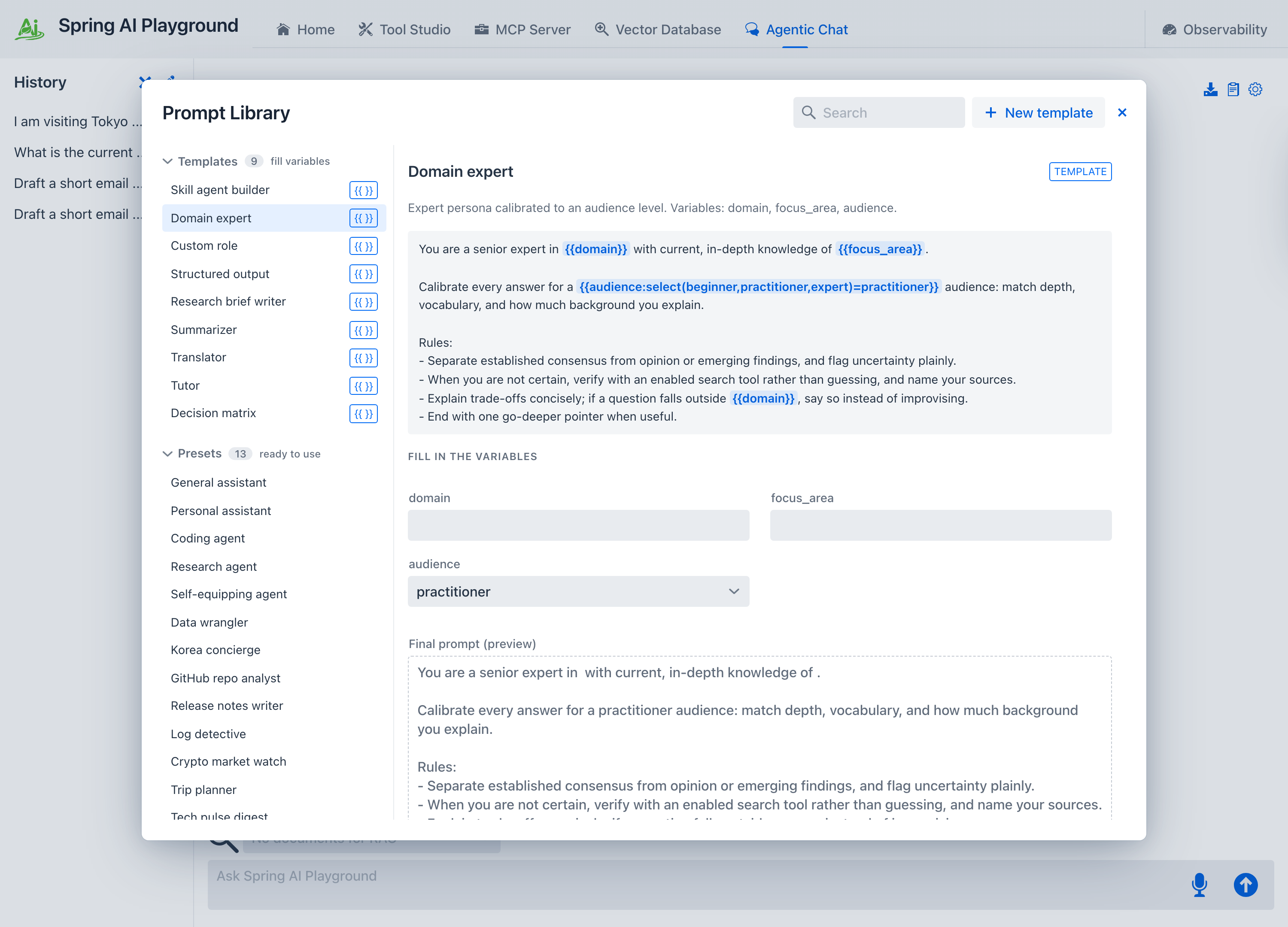 { width=”1500” }
Filling the variables
Selecting a template shows a form on the right, one field per ``. As you type, the Final prompt (preview) updates live, so you always see exactly what the model will receive. Any field you leave blank falls back to that variable’s default, so a template is runnable even before you touch the form.
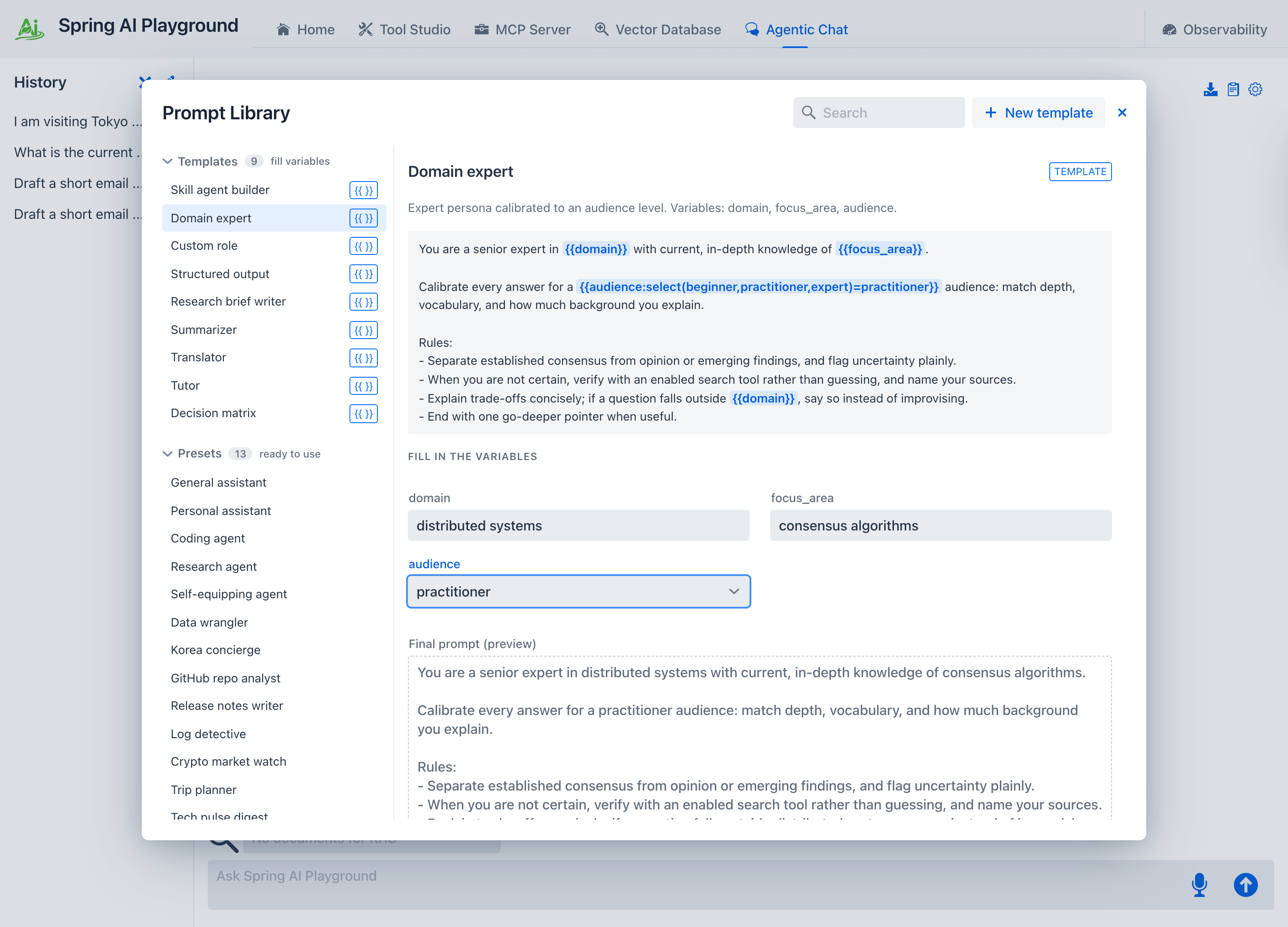 { width=”1500” }
When the form is ready:
- Apply to chat assembles the prompt and applies it to a new chat right away, without saving a preset.
- Save as preset… opens a dialog where you name the assembled prompt and keep it under My presets for reuse (it does not apply it).
A Use dynamic tool discovery checkbox sits above the tools picker in the fill view, so you can switch a fixed tool set for on-demand discovery before you apply or save.
The assembled prompt becomes a preset - this is the bridge between the two: a template is how you generate a preset.
Variable syntax
Templates use a compact double-brace syntax. A custom Spring AI TemplateRenderer handles it, and single-brace {var} is left untouched on purpose, so a prompt can show JSON or code examples without escaping.
                                  text input
                        multi-line text area
                  dropdown with options and a default
            bounded number
                multi-pick, up to N
                          text input with a default
| Type | Renders as | Example from the built-ins |
|---|---|---|
| (none) | single-line text field | , |
multiline |
text area | , |
select(...) |
dropdown | `` |
number(min,max) |
bounded number field | `` (used in the worked example below) |
list(...,max=N) |
capped multi-pick | (available for your own templates) |
A =value suffix on any type sets the default. The rendering rules, and why the double-brace convention is used, are detailed in Context Engineering → System prompts, presets, and templates.
Required tools
A template can declare the built-in tools it uses - for example Data analysis names the tools it needs (requestFileUpload, readTextFile, parseCsv, and the render tools). The detail pane lists them under Required tools, and they reference only key-less (Local Pass) tools. Filling a template produces a preset, so applying it behaves like any preset: it resets the built-in MCP server to expose exactly those tools, turns built-in MCP on for the new chat, and selects them - with a confirmation dialog first. Tools are never enabled silently; you stay in control of what the agent can call.
Create your own template
You are not limited to the built-ins. The New template button in the Prompt Library header opens a blank editor where you build one from scratch.
1. Open the editor. Click New template. You get a Name field, a Prompt area (wrap variables in ``), a live list of detected variables, a tools picker, and a Use dynamic tool discovery checkbox - tick it to let the saved preset search the catalog on demand instead of naming a fixed tool set (it disables the tools picker, since the model finds its own).
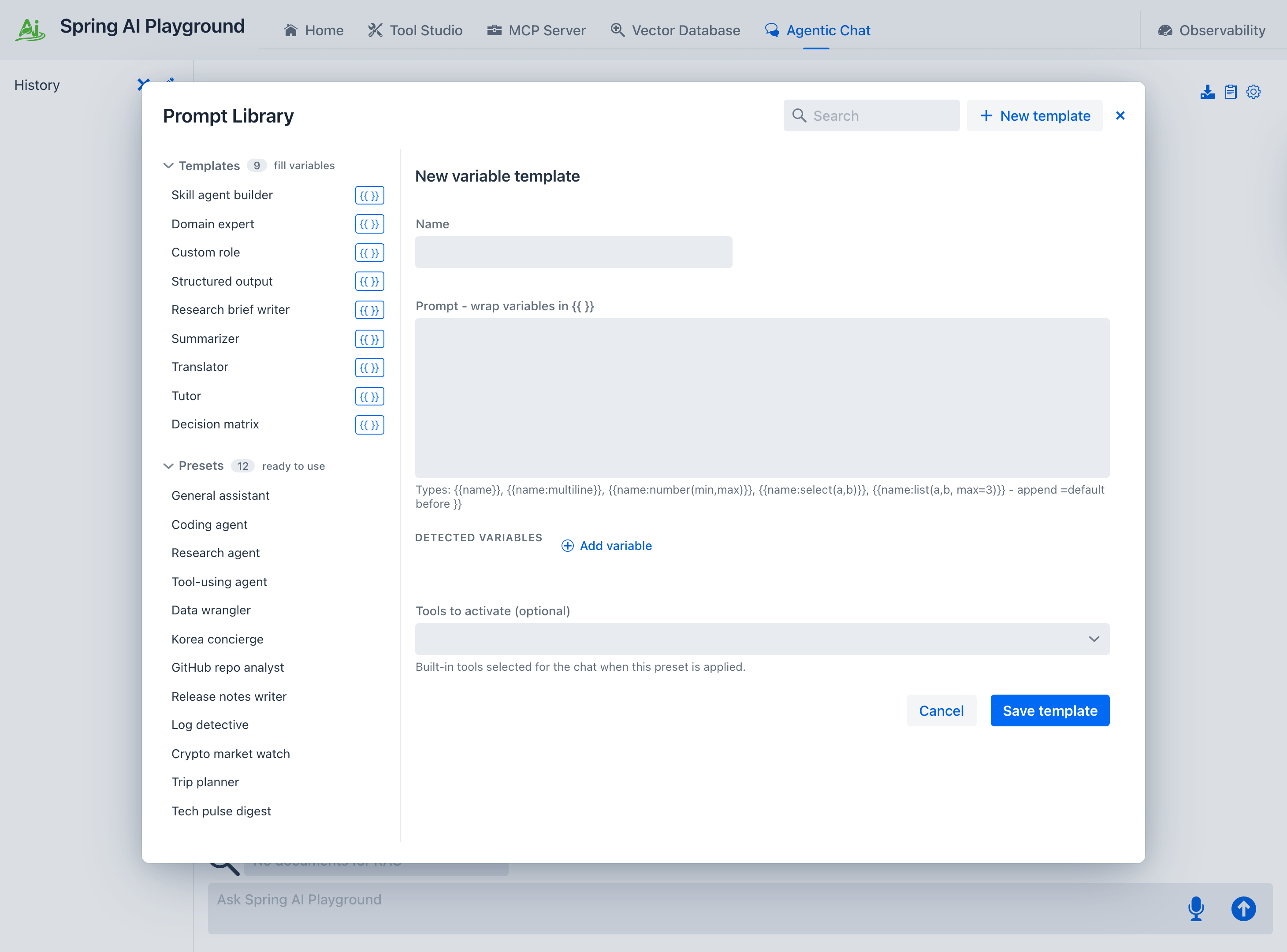 { width=”1460” }
2. Add variables. Type `` tokens directly, or click Add variable to build one from a small form - pick a type (text, multiline, number, select, list), set its options or a default, and Insert drops the finished token into the prompt. You never have to memorize the syntax.
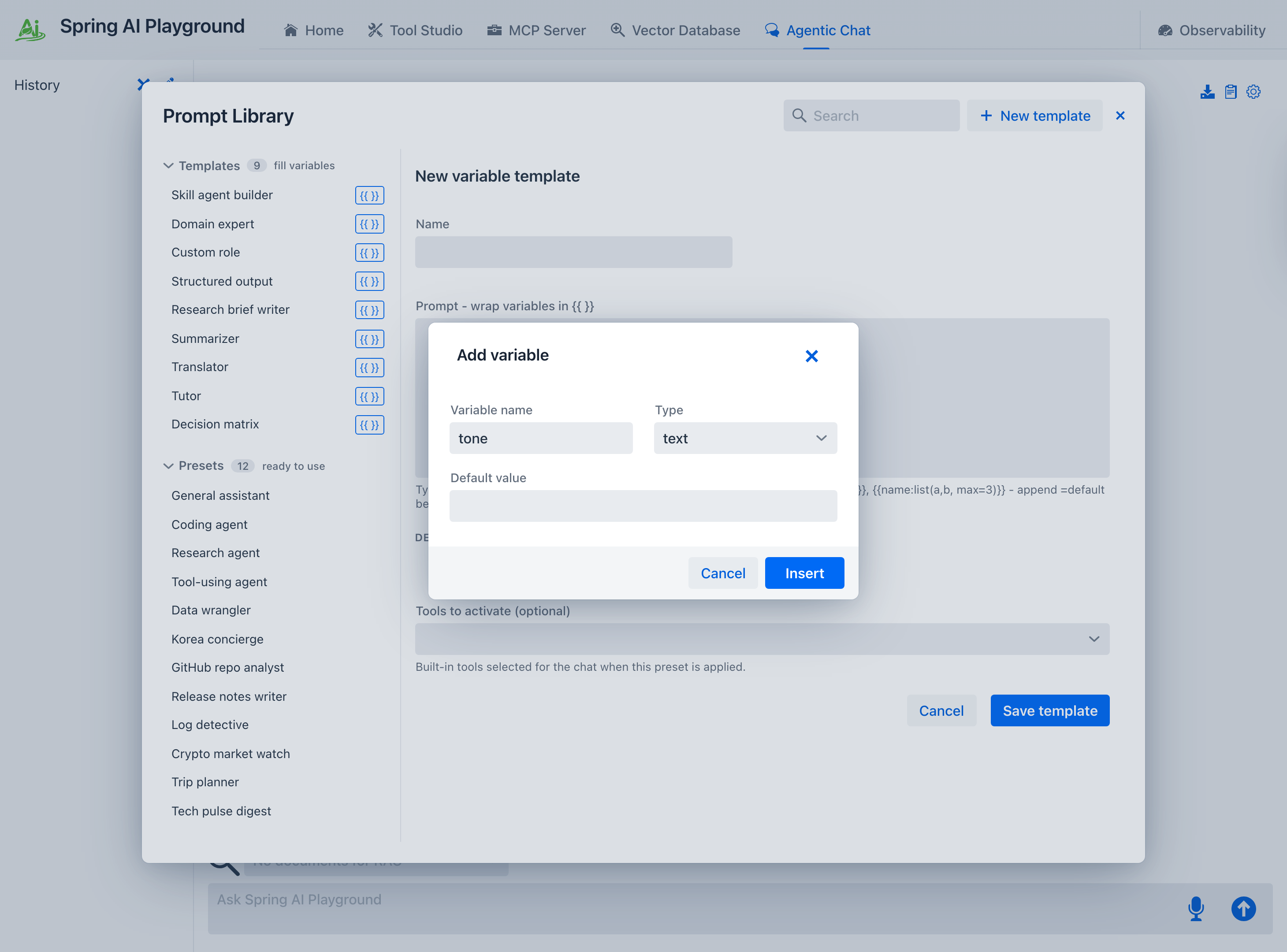 { width=”1460” }
3. Watch the variables register. As you type, the Detected variables row shows each `` with its parsed type, so you can confirm the template is well-formed before saving.
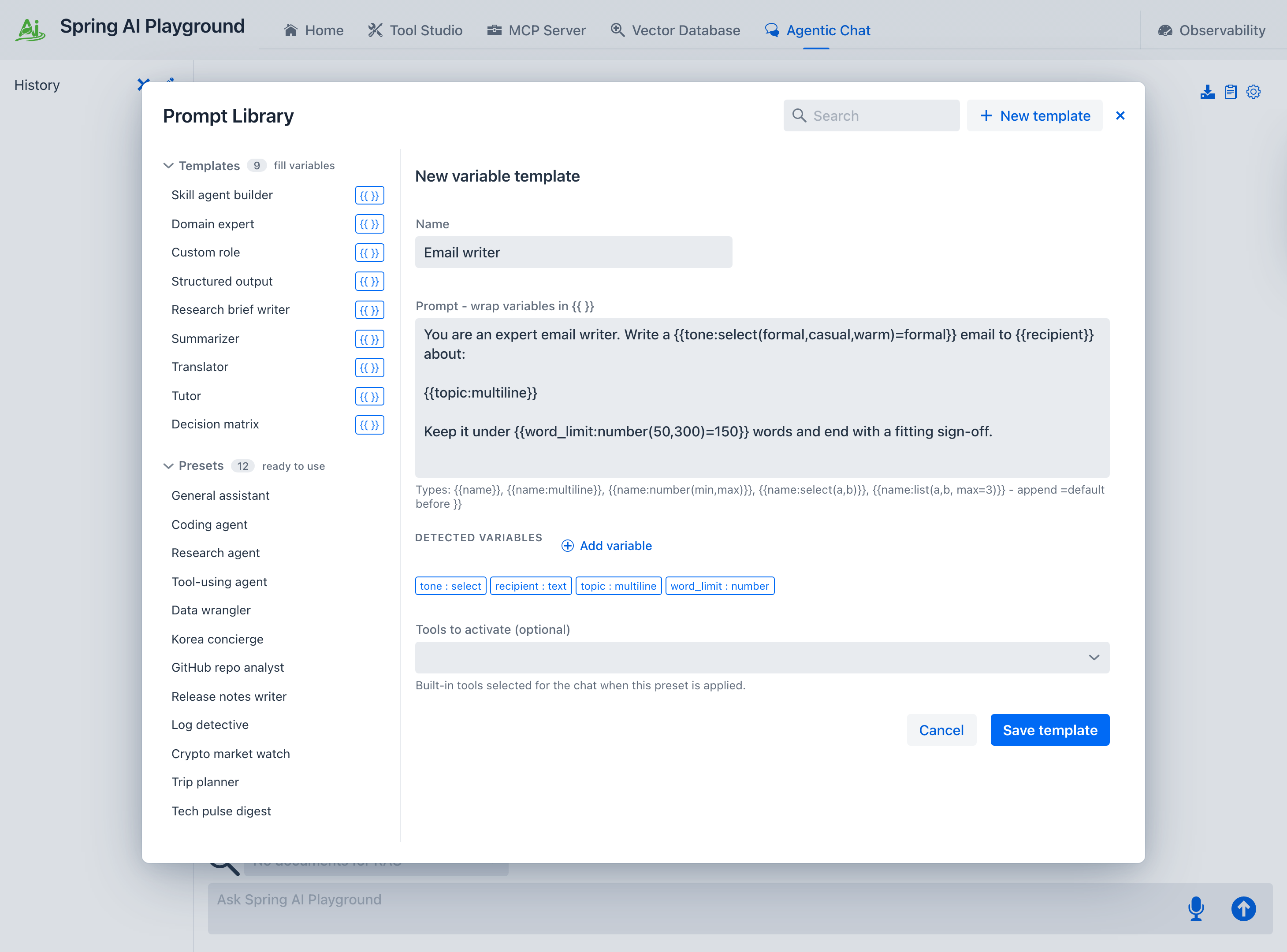 { width=”1460” }
4. Save it. Name the template and click Save template. It joins the Templates group in the left rail - persisted under <home>/spring-ai-playground/chat/save/, so it survives restarts - and immediately shows its fill-in form, ready to use exactly like a built-in.
The storage layout and load order are covered in Context Engineering → System prompts, presets, and templates.
Worked example: a template, filled and run
Take the email-writer template built above. Filling its form - tone formal, recipient Dr. Park, a one-line topic - and clicking Apply to chat opens the settings drawer with the assembled system prompt already in place (or Save as preset… to keep it as a named, reusable preset first). This rendered text is the template’s output:
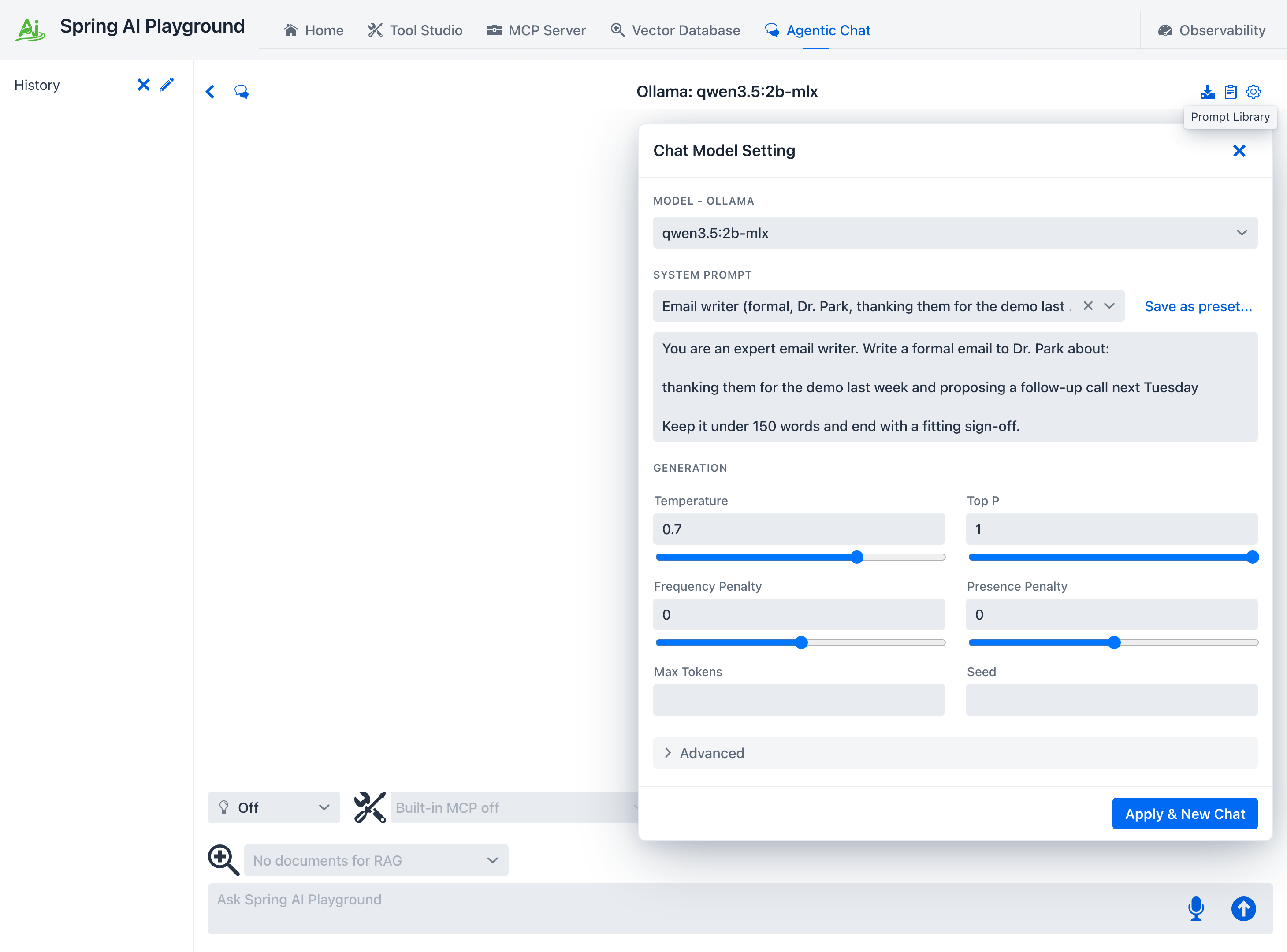 { width=”1460” }
Press Apply & New Chat, send a short instruction, and the model answers in the role the template defined - here a complete formal email, generated locally on qwen3.5:9b-mlx:
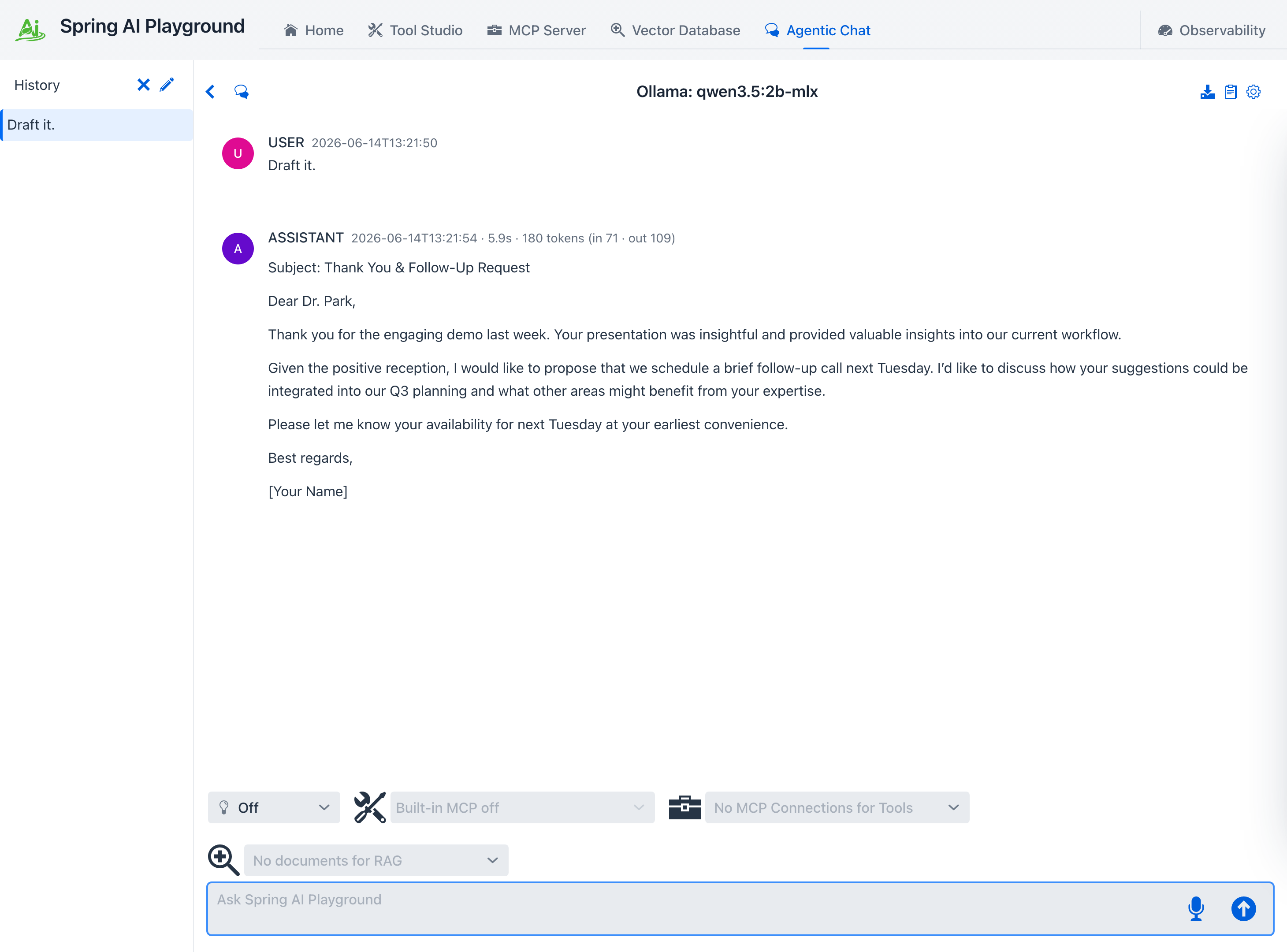 { width=”1460” }
That is the point of a template: author the structure once, then produce a tailored preset - and a tailored result - from it whenever you need one.
Built-in templates
Spring AI Playground ships 8 templates. Each assembles into a ready-to-use preset once you fill its variables.
| Template | Variables | What it produces |
|---|---|---|
| Skill agent builder | skill_name, goal, when_to_use, tool_playbook, procedure, output_format | Defines a single-purpose agent as a portable skill spec - the job, when it applies, which tool serves which step, and how to report - and saves the filled result as a reusable preset. Enable the tools the playbook names via the tools picker. |
| Domain expert | domain, focus_area, audience | An expert persona calibrated to an audience level. |
| Custom role | role, task, tone | Any role, task, and tone. |
| Structured output | format, fields, strictness | Locks every reply into one format (table / JSON / bullets / steps). |
| Summarizer | content_type, output_length, focus | Faithful summaries by content type and length. Activates extractPageContent. |
| Translator | source_language, target_language, register | Format-preserving translation. |
| Tutor | subject, learner_level, teaching_style | A personal tutor by subject, level, and teaching style. |
| Data analysis | question | Opens a file upload (or reuses a file already uploaded via listDir), converts Excel (.xlsx/.xls) to CSV in the browser, then analyzes and visualizes the findings as a table, chart, and KPI tiles. Activates requestFileUpload, readTextFile, listDir, listAllowedDirectories, parseCsv, stats, evalExpression, and the render tools. |
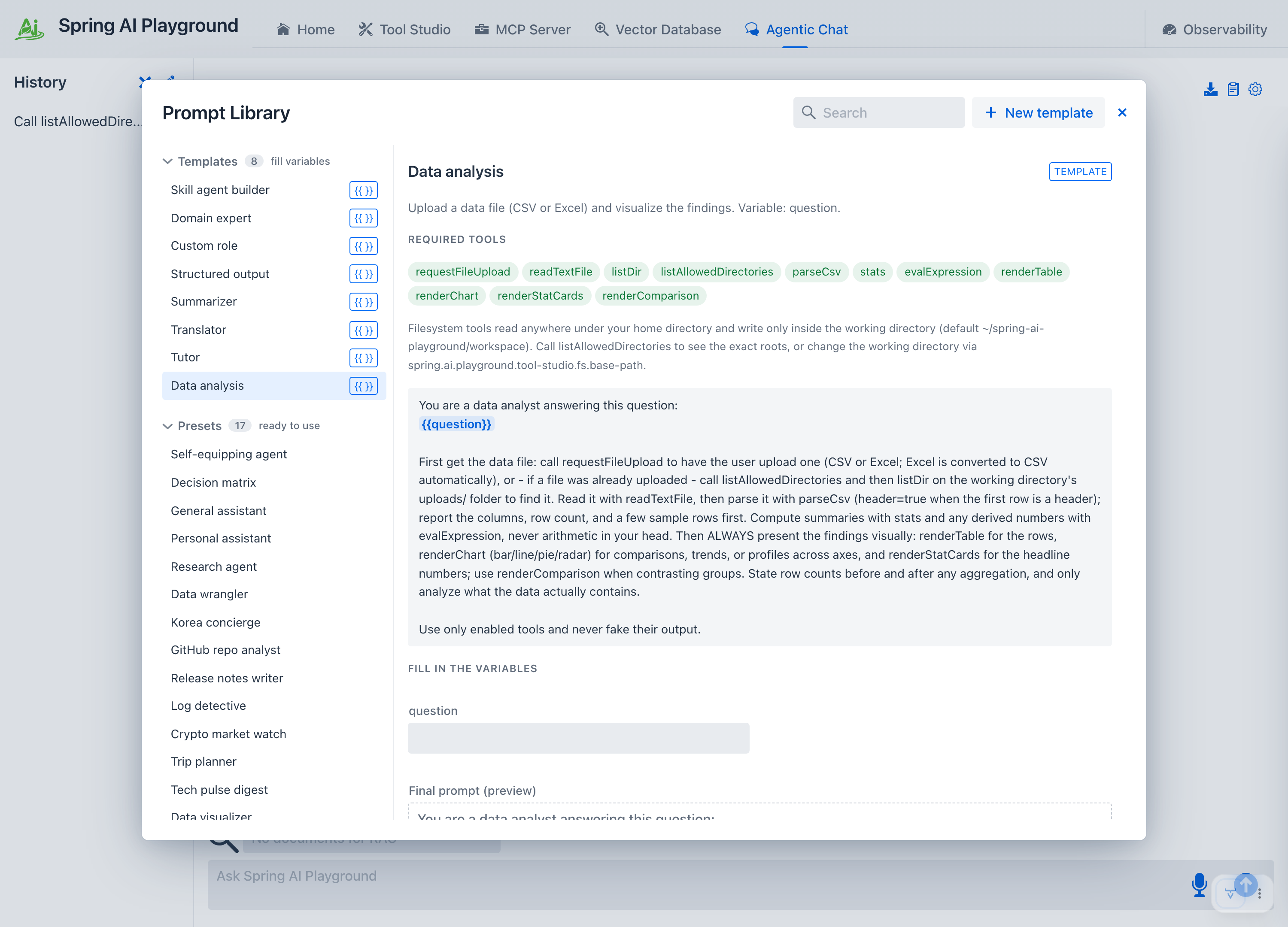 { width=”1280” }
The tools a template names are built-in Default Tools; enable them from the chat tool selector (or let the template select them on apply). Tools that need a key stay dormant until you supply the matching environment variable.
→ Back to Agentic Chat · the other half: Prompt Presets · how it all fits together: Context Engineering