spring-ai-playground
description: Default MCP Servers - 58 preset external MCP server connections (50 remote + 8 stdio per OS), browseable + filterable across 6 category pages.
Default MCP Servers
Where: top navigation → MCP Server → the sidebar’s Inactive MCP section.
Spring AI Playground ships with 58 default MCP server connections spread across 50 vendor-official remote entries (Streamable HTTP - Gmail, Outlook, Notion, GitHub, Linear, Atlassian, Stripe, BigQuery, …) and 8 community stdio entries per OS (modelcontextprotocol/servers - Git, Memory, Puppeteer, MCP Everything, …). They are ready to activate the moment the desktop launcher is running - you do not need to type a URL or hunt down a stdio command yourself to start chatting against an external service.
The MCP Server sidebar does not connect them all by default - every entry starts in the sidebar’s Inactive MCP section as a ghost row. Clicking one promotes it into the right-hand configuration form pre-filled with the catalog template, so you only fill in your local secret / tenant before Save & Connect. The catalog itself lives in src/main/resources/mcp/default-mcp-specs*.json and the activation/filter state lives entirely in the sidebar.
Browse all 58 catalog entries { #browse-all-entries }
Click a card to jump to its full reference (with transport / auth defaults / required env / docs expanded) on the right sub-page - same UX as the Default Tools directory and the MCP Server Setting drawer in Tool Studio. Six reference pages organise the catalog by category cohort: Productivity & Communication · Dev & Project Management · Data & Cloud · Business · Search · Examples.
Filter modes: combine a search keyword with one or more Category / Tag / Transport chips - search is AND across the chip filters; chip selections within a group are OR (a card is shown when its category OR tag OR transport matches any selected chip in that group, and the search keyword matches its name or vendor or description).
Sidebar filtering and form prefill { #sidebar-filtering-and-form-prefill }
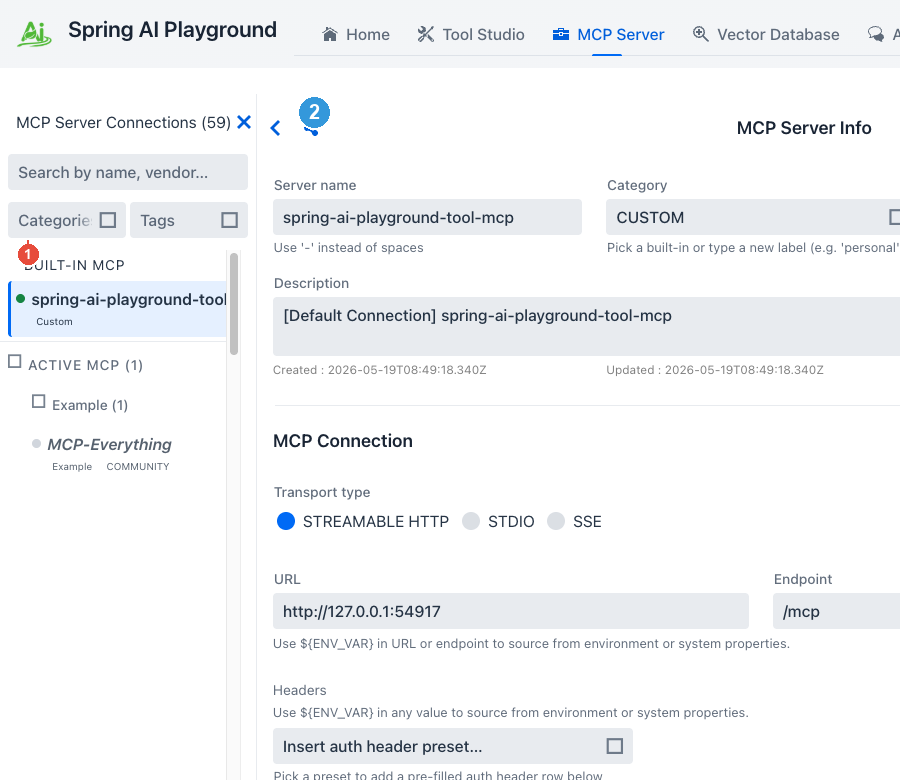
The MCP Server screen has two cooperating regions - a filter bar at the top of the left sidebar (①) and a connection form in the right pane (②). Clicking any catalog row in the sidebar prefills the form on the right without leaving the page.
 { width=”640” loading=lazy }
① Filter bar { #filter-bar-detail }
Built from the shared webui/common/sidebar/SidebarFilterBar widget (Tool Studio uses the same one). Three controls that compose AND across groups, OR within a group:
- Search - matches against server name, vendor, description, and - for active connections only - live tool names returned by
listTools. 200 ms debounce before re-rendering. - Categories multi-select - the 13 built-in catalog categories plus
Customfor user-added entries:Example · Productivity · Storage · Communication · Project Management · Dev · Search · Cloud · Database · Finance · CRM · Design · Utility · Custom. - Tags multi-select - drawn from the union of every catalog entry’s tags and every active server’s tags. Cohort vocabulary:
aggregator · beta · community · free-tier · geo · global · korea · legal · pipeline · preview · us.
For example, picking Productivity + preview narrows to Gmail and Google Calendar (the two preview-stability Workspace entries); a search term layered on top further trims the visible count. The sidebar header counter swaps between (N) and (N filtered of M) when a filter is active; an empty match offers a Clear filters button.
② Connection form { #form-prefill-detail }
Clicking any Inactive MCP entry copies the catalog template into the right pane:
- Transport -
STREAMABLE_HTTPfor remote entries,STDIOfor the per-OS entries - URL or Command + Args - with
${ENV_VAR}placeholders for anything secret; STDIO arguments render as one row per argv element - OAuth issuer URI + scopes - pre-filled for OAuth-protected entries
- Category + Tag chips - matching the catalog row
- Inline description - carrying prerequisites and a
Docs:link - Headers preset - Bearer / Basic / API Key, with
${VAR}substitution wired in (OAuth 2.1 lives in its own checkbox-toggled sub-form)
The row stays in the Inactive layer until you click Save & Connect; on save it moves into the Active layer under the same category group and the playground spawns the child process (STDIO) or opens the HTTP transport. For OAuth entries this records the registration without yet connecting - see MCP Server → OAuth 2.1 Authorization Code for the Authorize click.
Two ways to use these entries
Activate from the sidebar
The simplest mode - open MCP Server, scroll the sidebar’s Inactive MCP layer, click the entry you want. The right pane fills in:
- transport (
STREAMABLE_HTTPfor remote entries,STDIOfor the per-OS entries) - URL or command + args, with
${ENV_VAR}placeholders for anything secret - default OAuth issuer URI + scopes for OAuth-protected vendors
- category + tags chips matching the catalog row
- inline description with prerequisites and the upstream
Docs:link
Fill in only what’s local to you (an API key, a tenant ID, the OAuth Authorize click) and Save & Connect. The row moves into the Active MCP sidebar layer; the in-app MCP Inspector becomes live; the connection is available to Agentic Chat as a tool source.
- → MCP Server: Catalog & Sidebar Filtering - 3-layer sidebar · filter bar · activation
- → MCP Server: OAuth 2.1 Authorization Code - for the OAuth entries (Gmail, Outlook, Notion, Linear, Atlassian, …)
- → MCP Server: MCP Inspector - exercise tools, resources, prompts before relying on the connection from chat
- → Agentic Chat - call them from a model conversation
- → Tutorial 2 - Connect an External MCP Server - first-time activation walkthrough
Compose with custom servers and authored tools
The deeper mode - combine multiple catalog connections with your own custom servers and Tool Studio-authored tools in one chat. Agentic Chat picks any subset of active MCP servers per turn, so an agent can read your Notion + look up a Linear ticket + write a Slack reply in the same conversation. The catalog is the fastest path to that composition because it skips the URL-typing / OAuth-discovery / requiredEnv guesswork for the most common vendors.
- → Tool Studio: Key Tool Studio Capabilities - author and publish custom tools that ride alongside catalog connections
- → Default Tools directory - the parallel 115-tool JavaScript inventory the built-in MCP server publishes
End-to-end flow
[ Catalog entry  · Custom Server form ]
            │
            ▼
   [ Configuration form (pre-filled or blank) ]
            │
            ▼
   [ Save & Connect  ✅ ] ──── connection becomes Active
            │
            ▼
   [ Active MCP connection ]
            │
            ├── In-app MCP Inspector - exercise tools / resources / prompts / sampling / elicitation
            │
            ├── Agentic Chat - call the connection's tools from a model turn
            │
            └── Expose on built-in server (M8) - re-publish the tools you select
                (individually or Select all, across one or several connections) on
                the built-in MCP server, so Agentic Chat and external /mcp clients
                call them on one endpoint
The catalog only changes step 1 (entry selection + form pre-fill). Everything after - Test Connection, OAuth Authorize, Inspector, Agentic Chat - is the same path a custom server takes. The catalog is sugar on top of the connection management surface, not a separate runtime.
!!! info “Re-publishing external tools to external clients”
Through the Composed Tools drawer you re-publish the external tools you select - individually or with Select all, across one or several active connections - on the built-in MCP server, each wrapped with a risk level, optional HITL, and logging. They join the Default Tools on one endpoint (http://localhost:8282/mcp), callable by Agentic Chat and any external /mcp client. See Default Tools → Expose and call.
Why a built-in catalog matters
Most MCP client implementations require the user to type each external server’s URL by hand, look up OAuth issuer URIs from a vendor doc, and discover which env vars requiredEnv declares. That’s three lookup hops before any tool runs.
Spring AI Playground’s catalog pre-resolves those hops. The 50 remote entries carry the vendor-recommended Streamable HTTP URL + OAuth defaults + tenant-ID hints; the 8 stdio entries carry the npx / uvx command + args verified against modelcontextprotocol/servers. The desktop launcher even picks the OS-matching stdio variant automatically (npx for macOS / Linux, npx.cmd for Windows) so the pre-filled command can be saved without editing on any host.
Every entry is either vendor-official (Tier 1 - listed under the vendor’s own documentation) or community-published (Tier 2 - modelcontextprotocol/servers and adjacent maintained projects). The catalog file shipped with the app is the source of truth; updates land as part of regular releases rather than requiring users to chase vendor doc URLs.
How catalog trust feeds the risk score { #trust-and-risk }
Those tiers are not just provenance labels - they feed the connection risk preview. Each catalog entry carries two machine-readable fields consumed by McpServerRiskCalculator:
trustSignals-vendor-officialzeroes the trust axis;community-curatedscores it 1. A server you type by hand scores 2 (unknown origin) - which is why activating from the catalog generally lands a lower risk chip than typing the same URL manually.docsAdequate- when set (as the curated catalog entries are), the documentation axis takes no gap penalty, and the per-tool documentation penalty is waived for that server’s tools.
So a vendor-official catalog entry over HTTPS typically computes L1 - Safe or L2 - Low, while an unknown hand-typed URL with no auth can trip a floor rule straight to L5 - Critical. See MCP Server Safety for the full rubric.
Each card above carries this typical level as a colored chip - L2 for a vendor-official OAuth server, L3 for a Bearer / API-key one. It’s the level the connection scores at fresh activation; the connection form recomputes it live, and it rises if you grant broad OAuth scopes (admin, write_all, … → L5) or the server advertises write capability. Per-tool levels are discovered on connect - see them in the Inspector.
Composition recipes
The reference pages list what’s available; composition recipes show how to chain multiple catalog connections (and custom tools) into a useful workflow. Three combinations worth bookmarking:
- PR digest → Slack -
GitHub(catalog) →openaiResponseGenerator(default tool) →Slack(catalog), ending in an agent that posts release-note summaries to a channel. - Mail + calendar triage -
Gmail(catalog) →Google Calendar(catalog) → custom tool, ending in an agent that drafts replies and books follow-ups in one turn. - Issue tracker grounding -
Linear(catalog) →Atlassian Rovo(catalog) →Notion(catalog), ending in an agent that cross-references tickets across all three trackers when answering project questions.
All three live on Streamable HTTP with OAuth 2.1 - once you’ve completed the Authorize click for each vendor, the playground holds encrypted refresh tokens and the agent reaches all three without re-prompting.
Environment variables - short list
Some catalog entries depend on environment-backed values and stay inert until those are set. The full per-entry breakdown lives on each reference page; the most common are:
| Env var | Used by | Why |
|---|---|---|
MS_TENANT_ID |
Outlook Mail, Outlook Calendar, Microsoft Teams |
Microsoft 365 Agent365 tenant routing - entries fail fast at connect time if missing |
MEMORY_FILE_PATH |
Memory (Knowledge Graph) (stdio) |
Override the default JSON store path for cross-session memory |
BRAVE_API_KEY |
Brave Search (stdio) |
Brave Search API key - passed through stdio env |
TAVILY_API_KEY / EXA_API_KEY / SERPAPI_API_KEY / JINA_API_KEY / FIRECRAWL_API_KEY |
Search-category entries | Vendor API keys for Tavily, Exa, SerpAPI, Jina AI, Firecrawl - surfaced via ${VAR} placeholders in the headers |
| OAuth client secrets | Any OAuth entry with a non-public client | Storable as ${SOME_OAUTH_CLIENT_SECRET} in the OAuth sub-form’s Client secret field |
${VAR} placeholders in any value field resolve from the OS environment (or a JVM system-property fallback) at connect time; the persisted JSON keeps the literal placeholder string, never the resolved secret. A backend SecretMasking filter additionally sweeps connection-error notifications and per-call logs to replace resolved values with *** so credentials cannot leak into the playground UI - see Safety Architecture → Secret masking.
→ MCP Server: ${ENV_VAR} substitution - placeholder syntax and the missing-reference fail-fast behaviour.